Vision Board
Canva or a Vision Board App: Which Is Easier for Beginners?
Canva or a vision board app? An honest side-by-side: what Canva does better, what VISIYA does better, the steps to a first board, the right sizes and a 5-question check.

On this page
- What's the difference between Canva and a vision board app?
- How many steps does it take to make your first board?
- What does Canva do better?
- What does VISIYA do better?
- Which one fits you: Canva, VISIYA or both?
- Can you use Canva and VISIYA together?
- Is a Canva vision board free?
- What size should a vision board be in Canva?
- What other vision board apps are there?
- How do you keep your board in view every day?
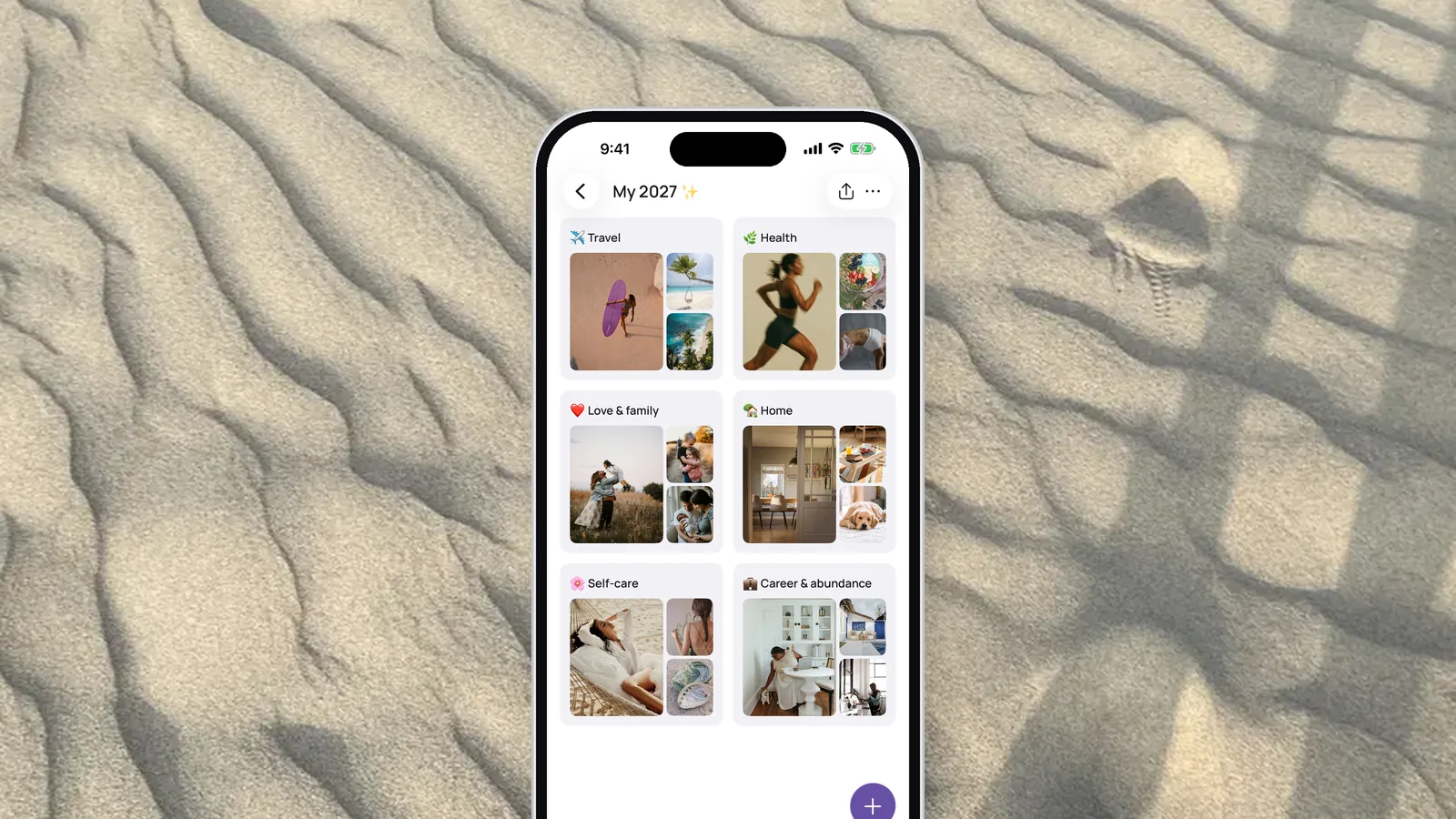
For beginners, a vision board app is easier than a Canva vision board. In VISIYA, you start from a template with your life areas set up and fill it with pictures on your phone. Canva is the better pick if you know design tools or want to print your board.
I've made boards both ways. Below: a side-by-side table, the steps to a first board in each and a five-question check.
What's the difference between Canva and a vision board app?
Canva is a design tool that can also make vision boards. VISIYA is an app made only for vision boards: the life areas are already there, and you fill them with pictures.
| Canva | VISIYA | |
|---|---|---|
| Built for | Any design, from flyers to posters | Vision boards, affirmations and a gratitude journal |
| How you start | Search for a template or open a blank design | Pick up to three life areas, or use a template |
| Life areas | You lay them out yourself with frames and text | Set up in the templates, for example eight in the Wheel of Balance Board |
| Pictures | Upload your own or use Canva's library | Your photos, the camera or "Search images" (Unsplash photos, GIPHY GIFs) |
| Design freedom | Complete: layers, fonts, colors, effects | Set grids; you choose pictures, notes, colors and stickers |
| PDF for print in any size, from US Letter to a poster | No print format; you download the board as a PNG | |
| Phone wallpaper | You build it and need to know your phone's resolution | "Create wallpaper" fits your screen; saving is part of VISIYA Plus |
| Widget | None | Vision board widget with VISIYA Plus |
| Devices | Browser, Mac, Windows, iPhone, iPad, Android | iPhone and iPad only |
| Price | Canva Free costs nothing; Canva Pro is a paid subscription | One board free; VISIYA Plus is a one-time purchase |
| Account | Yes | Yes, sign in with Apple or Google |
The Canva details come from Canva's own pages on vision boards and pricing, as of October 2026.
How many steps does it take to make your first board?
Five in VISIYA, seven in Canva. Canva's own guide lists five steps, but it doesn't count signing in or replacing the placeholder text, and you'll do both with any template.
In Canva (7 steps):
- Open Canva and sign in to your account.
- Search for "vision board" and pick a template, or go to File and "Create new design" to start from a blank page.
- Replace the placeholder pictures: upload your own under Uploads, or drag in pictures from Canva's library.
- Replace the placeholder text with your own words.
- Adjust colors, fonts, the grid and frames until everything fits together.
- Download the design as a PNG, JPG or PDF.
- Print it, or set it as your phone's wallpaper.
In VISIYA (5 steps):
- Download VISIYA from the App Store, tap "Let's go" and enter your first name.
- Under "What do you want to manifest?", choose up to three areas.
- Tap the suggested pictures that feel right, then tap "Create board."
- Sign in with Apple or Google to keep your board on your iPhone and iPad.
- Add your own photos with the round + button, or find more under "Search images."
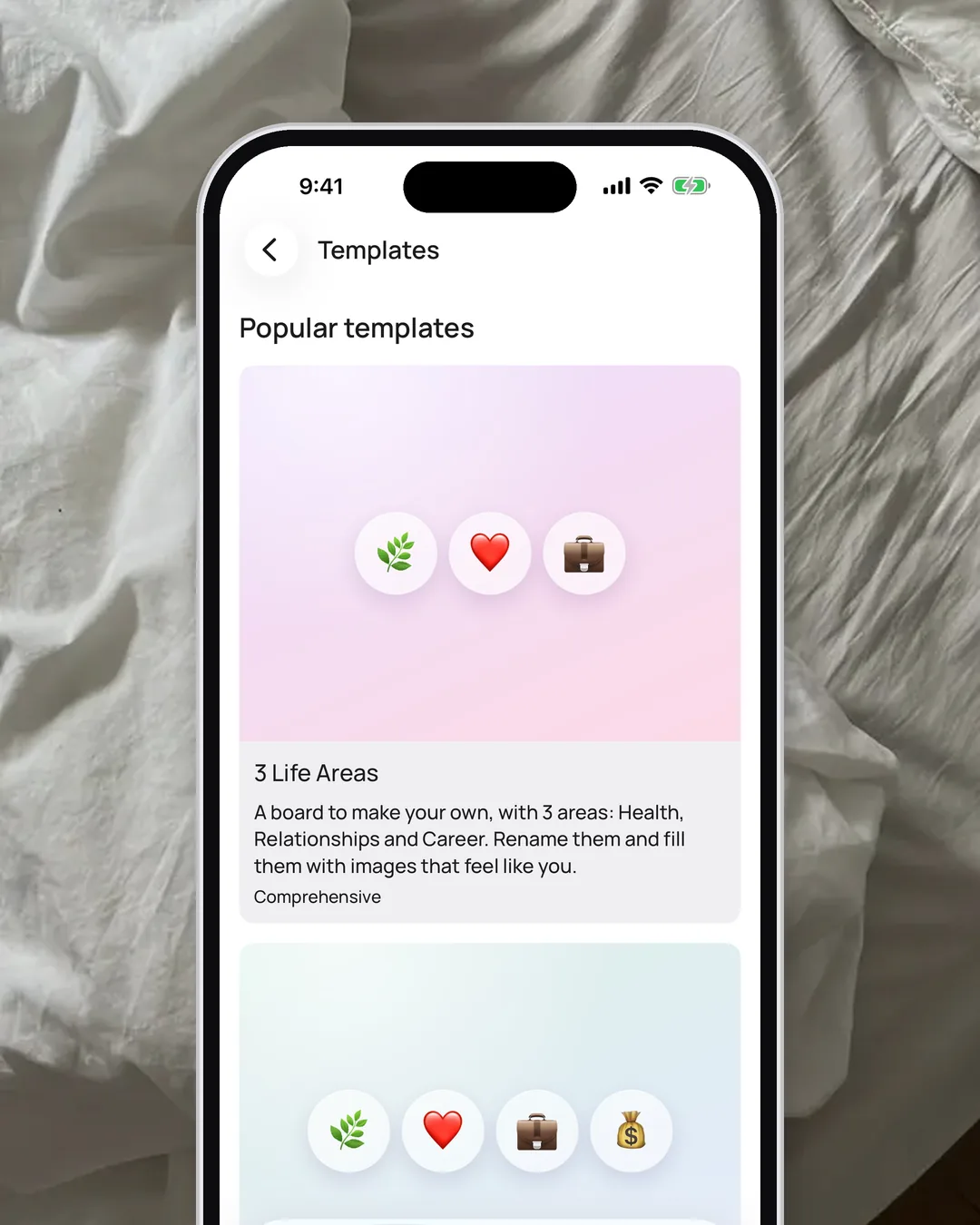
Want more areas from the start? Tap Boards, pick one under Templates and tap "Use template." The free ones include the Wheel of Balance Board with eight areas and the Feng Shui Bagua Board with nine.
Without VISIYA Plus, you get one free board: either your first board or one template.
I tried it
I've built a vision board in Canva myself. On a laptop or desktop, it's a great tool. On my phone, it got fiddly fast: lots of layers, far too many options, and almost all of them assume you have an eye for design.
The result looked beautiful. But you need to know things like your phone's exact screen resolution.
Canva is perfect if you want to get creative and already know your way around design tools. What it doesn't give you is the big picture: your life areas, the board in front of you every day and what has already come true.
What does Canva do better?
Anything that involves free-form design or print. If your board is going on a wall, Canva is the better tool.
- Print: You set the size, from US Letter to a poster, and download a PDF for print. Take it to a print shop or upload it to an online print service.
- Free-form design: You can move, rotate and layer every picture, font and frame. No grid tells you where things go.
- A huge library: Canva says even its free plan includes more than 1.6 million templates and over 4.7 million photos, graphics, fonts, videos and audio clips.
- Any device: Canva runs in the browser and has apps for iPhone, iPad and Android. VISIYA is for iPhone and iPad only.
- Designing together: You can invite others to your design, even if they don't have an iPhone.
What does VISIYA do better?
Everything that comes after the design: keeping your board organized, seeing it every day and checking off what came true. And you don't need design skills.
- Templates with life areas: You start with areas like Health, Finances or Love and Relationships and fill them, instead of building a layout first.
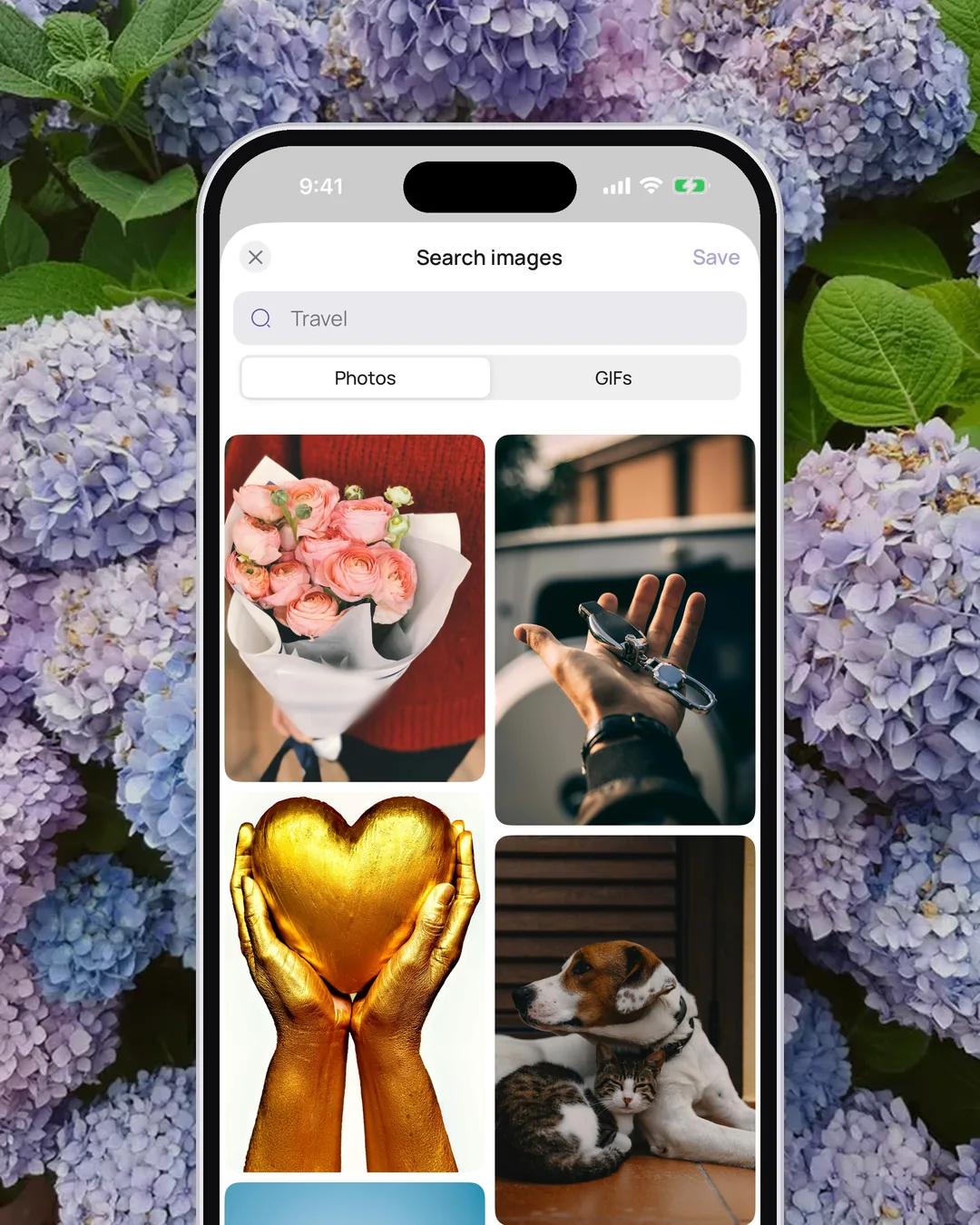
- Image search inside the board: "Search images" finds Unsplash photos and GIPHY GIFs without leaving the app.
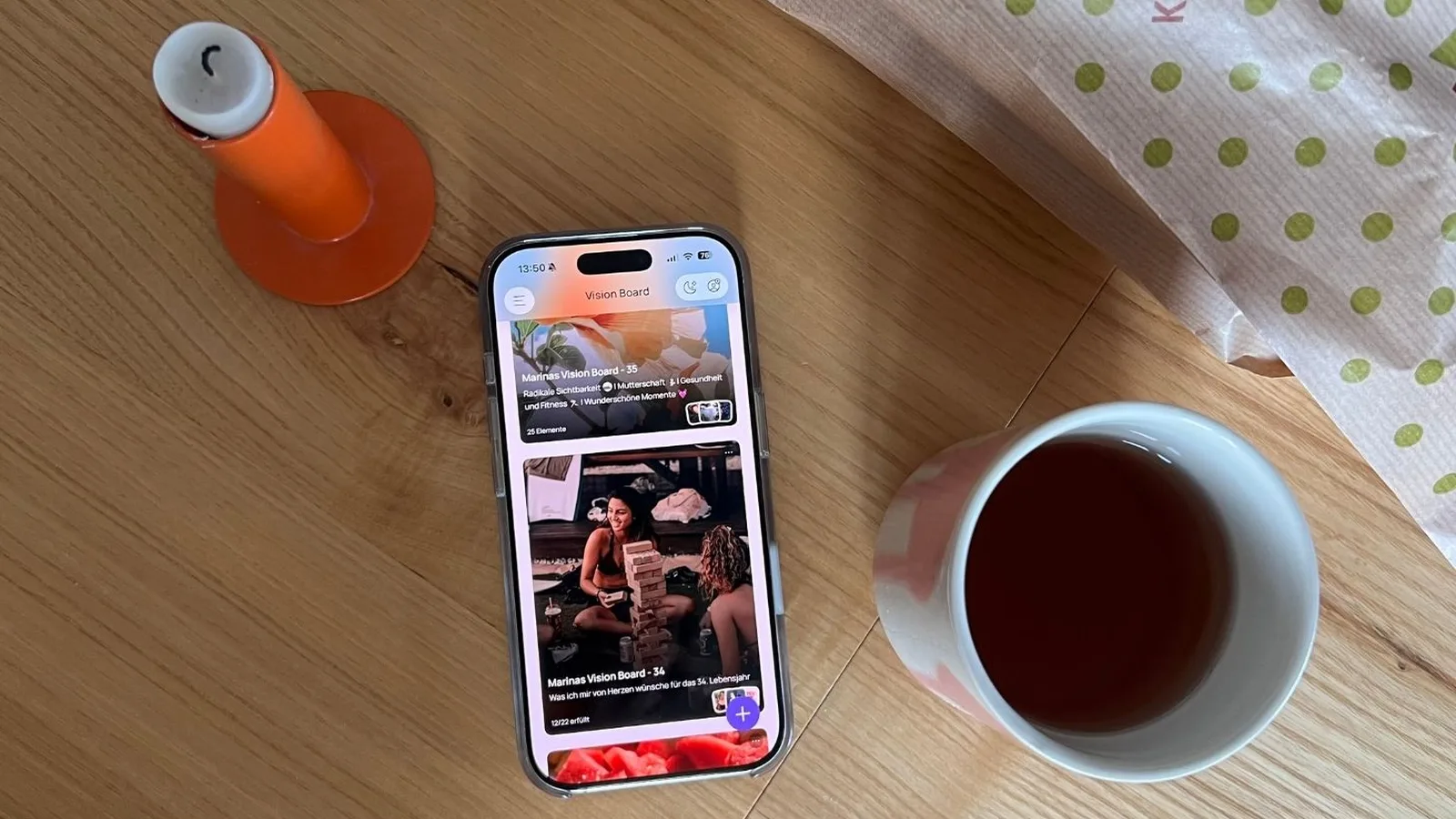
- Checking off wishes: Tap a picture, then "Mark as fulfilled." Your board keeps count of how many wishes have come true.
- Affirmations: 40 topics, six of them free. When a line speaks to you, put it on your board as a note.
For the full walkthrough, whatever tool you use, see how to make a vision board.
Which one fits you: Canva, VISIYA or both?
Answer five questions with yes or no. Each answer points one way.
| # | Question | Yes | No |
|---|---|---|---|
| 1 | Do you want to print your board and hang it up? | Canva | VISIYA |
| 2 | Have you worked with layers, fonts and image sizes before? | Canva | VISIYA |
| 3 | Do you have an iPhone or iPad? | VISIYA | Canva |
| 4 | Do you want your board sorted by life areas without building the layout? | VISIYA | Canva |
| 5 | Do you want to check off wishes as they come true? | VISIYA | Canva |
How to score it: Go with the tool that comes up most. If you answered no to question 3, VISIYA is out, so pick Canva.
If you said yes to question 1 and also to question 4 or 5, use both, as described next.
Can you use Canva and VISIYA together?
Yes. Design the pretty board for your wall in Canva and keep your everyday board in VISIYA.
- Design your wall board in Canva and download it as a PDF for print, then again as a PNG.
- Save the PNG to Photos, or take a photo of your printed board.
- Open your board in VISIYA, tap the round + button, then Photos. Your Canva board is now a picture in VISIYA.
- VISIYA treats your Canva board as a single picture. To mark wishes as fulfilled one by one, add them as separate pictures too.
Prefer paper, but without Canva? Our free printable templates come with the life areas already on the page, as PDFs.
Is a Canva vision board free?
Yes. With Canva Free you can design, download and print a vision board at no cost. You just need an account.
Canva Pro is a paid subscription, and you can try it free first. According to Canva's pricing page, it adds premium templates and photos, the background remover and one-click resizing (as of October 2026). You don't need Pro for a vision board.
In VISIYA, one board stays free for good: your own or one of the free templates. VISIYA Plus is a one-time purchase, not a subscription, and adds more boards and the Plus templates.
What size should a vision board be in Canva?
It depends on where it will live. For your phone, use your screen's resolution. For print, pick a paper size like US Letter.
| For | Size in Canva | Good to know |
|---|---|---|
| iPhone wallpaper | Your model's resolution, for example 1206 × 2622 pixels on an iPhone 17 | It's in your iPhone's tech specs. A 1080 × 1920 template has a different shape, so your iPhone crops the sides |
| Desk print | US Letter (8.5 × 11 in) | Any home printer handles it, and it fits a standard frame |
| Wall print | 11 × 17 in | Order it from a print shop or an online print service |
| Poster | For example 18 × 24 in | Use high-resolution photos only, or they'll look blurry |
Download a PDF for print, or a PNG or JPG for your phone.
In VISIYA you don't need to know your resolution: "Create wallpaper" fits your screen on its own. How to set the wallpaper on your iPhone afterward is in how to make a vision board on your phone.
What other vision board apps are there?
Plenty, for iPhone and for Android. Our roundup of the best vision board apps puts them side by side.

 Scan to download VISIYA on the App Store
How do you keep your board in view every day?
With the wallpaper and the widget, both with VISIYA Plus. A board you only open when you happen to think of it is easy to forget.
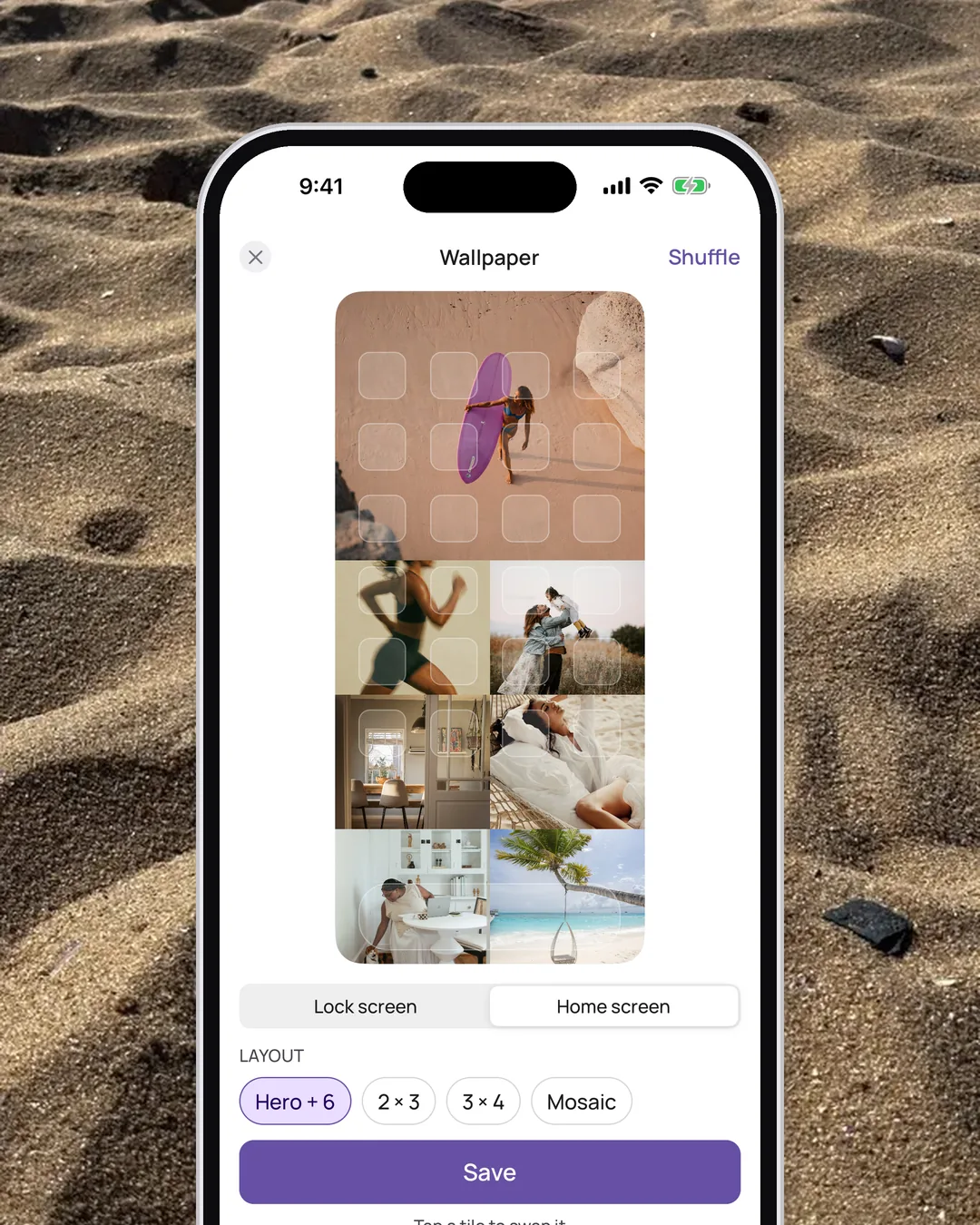
You can preview your wallpaper under "Create wallpaper" for free; to save it, you need VISIYA Plus. The widget is part of VISIYA Plus and cycles through all your pictures. Without Plus, it shows just the first picture.
That way, your board is right there every time you pick up your phone.
Frequently asked questions
Which vision board app is easiest for beginners?
If you have an iPhone and no design experience, an app built for vision boards is easier than a design tool. In VISIYA you pick up to three life areas or a template, tap the pictures you like and your board is done. Canva is easier only if you already know design tools.
Is a Canva vision board free?
Yes. Canva Free is enough to design, download and print a vision board, as PNG, JPG or PDF. You need a Canva account. Premium templates, premium photos and tools like the background remover are part of Canva Pro, a paid subscription (as of October 2026).
What size should a vision board be in Canva?
For a phone wallpaper, use your phone's screen resolution, for example 1206 × 2622 pixels on an iPhone 17. You'll find it in your model's tech specs. For print, US Letter (8.5 × 11 in) works on a home printer, and 11 × 17 in or a poster size suits a wall.
Can I use a Canva vision board in VISIYA?
Yes. Download your Canva design as a PNG or JPG, save it to Photos and add it to a VISIYA board with the round + button and Photos. VISIYA treats it as one picture, so if you want to mark wishes as fulfilled one by one, add them as separate pictures too.
Is VISIYA available on Android?
No. VISIYA is for iPhone and iPad only. On an Android phone, Canva is the better choice: it runs in the browser and has apps for iPhone, iPad and Android.