Vision Board
How to make a vision board on your phone (iPhone, step by step)
Your phone already holds the pictures, and you look at it all day. Here's how to turn those photos into a vision board on your iPhone, then keep it on your home screen and lock screen.
On this page
- Can you make a vision board on your phone?
- What should you put on a vision board on your phone?
- How do you make a vision board on your iPhone, step by step?
- 1. Say what you want to manifest
- 2. Tap the pictures that feel right
- 3. Meet your board
- 4. Add your own photos, notes and links
- 5. Add an affirmation
- How do you add a vision board widget to your iPhone home screen?
- How do you make your vision board your lock screen wallpaper?
- Can you make a vision board in Canva or Freeform instead?
- How often should you look at your vision board?
- Can you make a vision board on your phone for free?
You probably pick up your phone more often than you'd like to admit. So that's exactly where your vision board should live: on your lock screen, in a widget next to your apps, a tap away when you need a reminder of what you're working toward.
The good news is that you already have most of the pictures. They're in your camera roll, your screenshots and your Pinterest saves. Here's how to make a vision board on your phone, from the first photo to your lock screen wallpaper, plus a quick look at doing it without an app.
Can you make a vision board on your phone?
Yes, and for a lot of us it works better than a poster. A board on the wall fades into the background after a couple of weeks. Your phone doesn't.
I learned that the hard way. I've been making vision boards since 2022, and my first paper one ended up in a hallway where I walked past it every day without really seeing it. That's why I built VISIYA, a vision board app for iPhone and iPad. Sign in with the same account on both and your board shows up on each.
What should you put on a vision board on your phone?
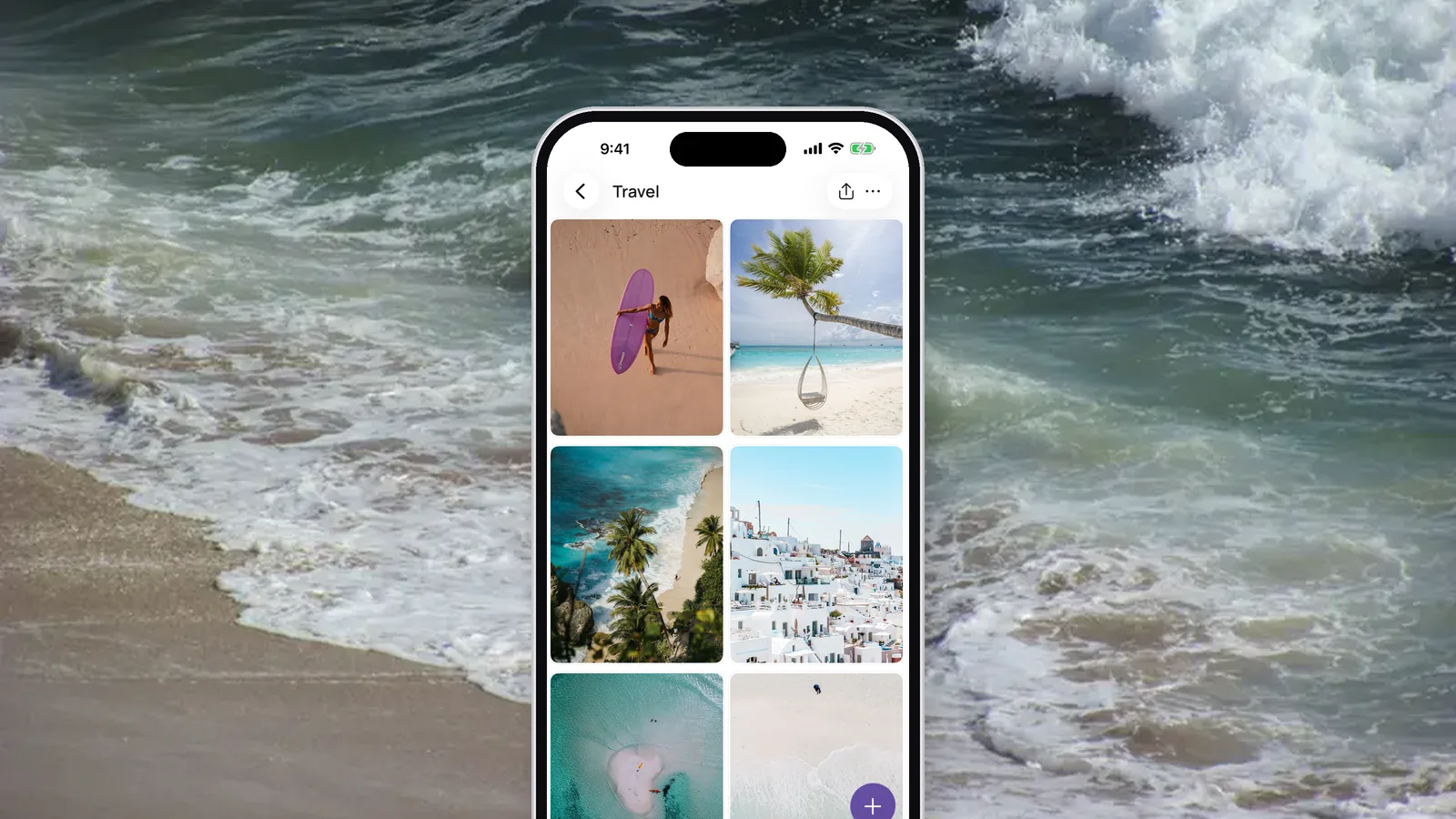
Pictures that give you a little jolt when you look at them. Where they come from doesn't matter: Pinterest, your own photos, a screenshot of a kitchen you'd love to cook in someday.
Before you open any app, make an album in Photos and call it something like "Vision Board 2027." For the next few days, everything that catches your eye goes in there. A recipe screenshot, a beach you want to stand on, the running shoes you keep looking at. When you sit down to build the board, it's all in one place and you're not scrolling through 8,000 photos looking for that one picture. If Pinterest is where you hunt for inspiration, here's how to save pictures from Pinterest for your vision board.
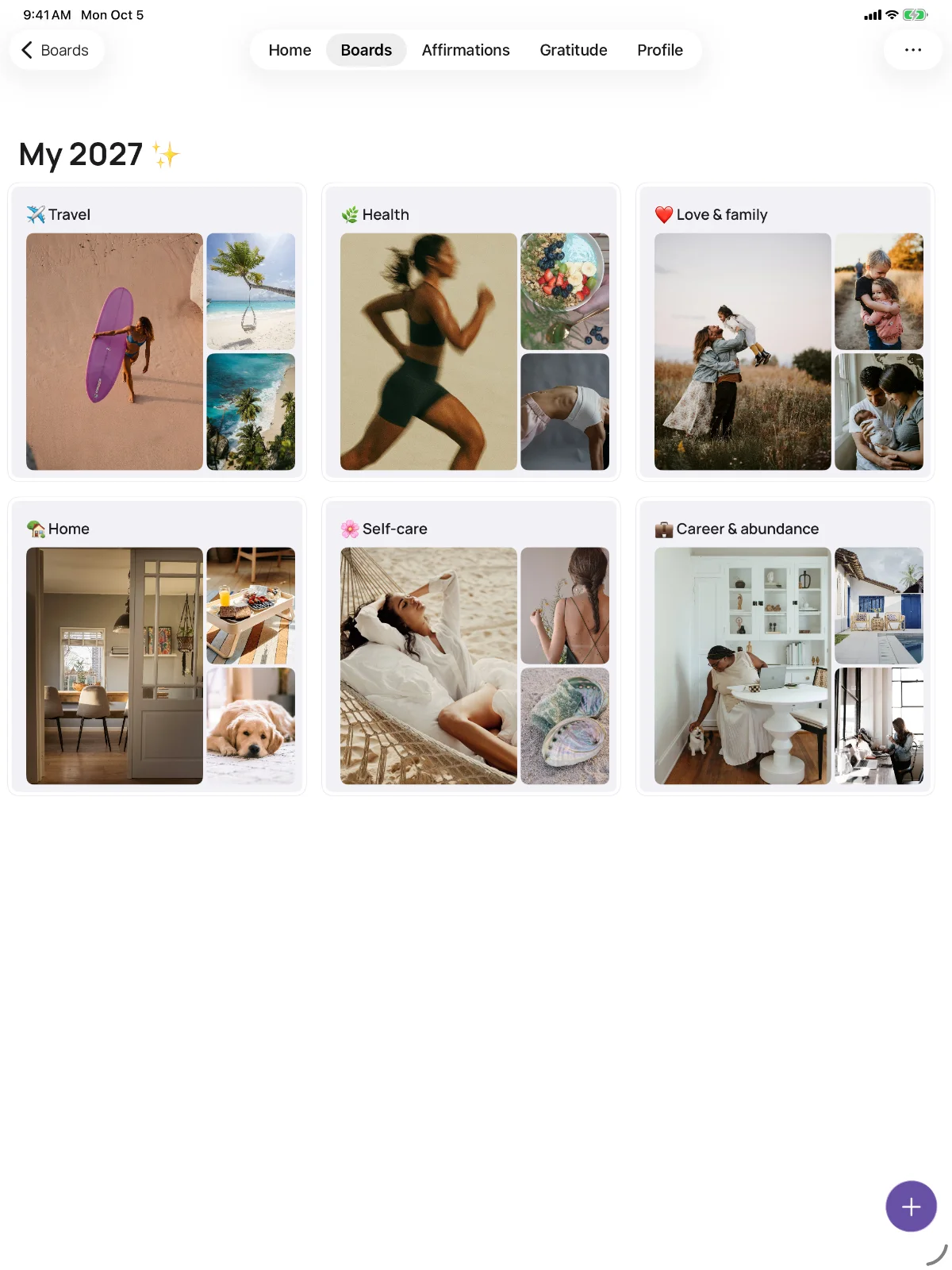
Then think in areas of life: health, love, home, money, career, travel. Pick the three that matter most right now. Three clear themes say more than one big collage where everything competes for attention, and they're what VISIYA asks you about first. Stuck on what to put in each one? Our list of vision board ideas has plenty.
How do you make a vision board on your iPhone, step by step?
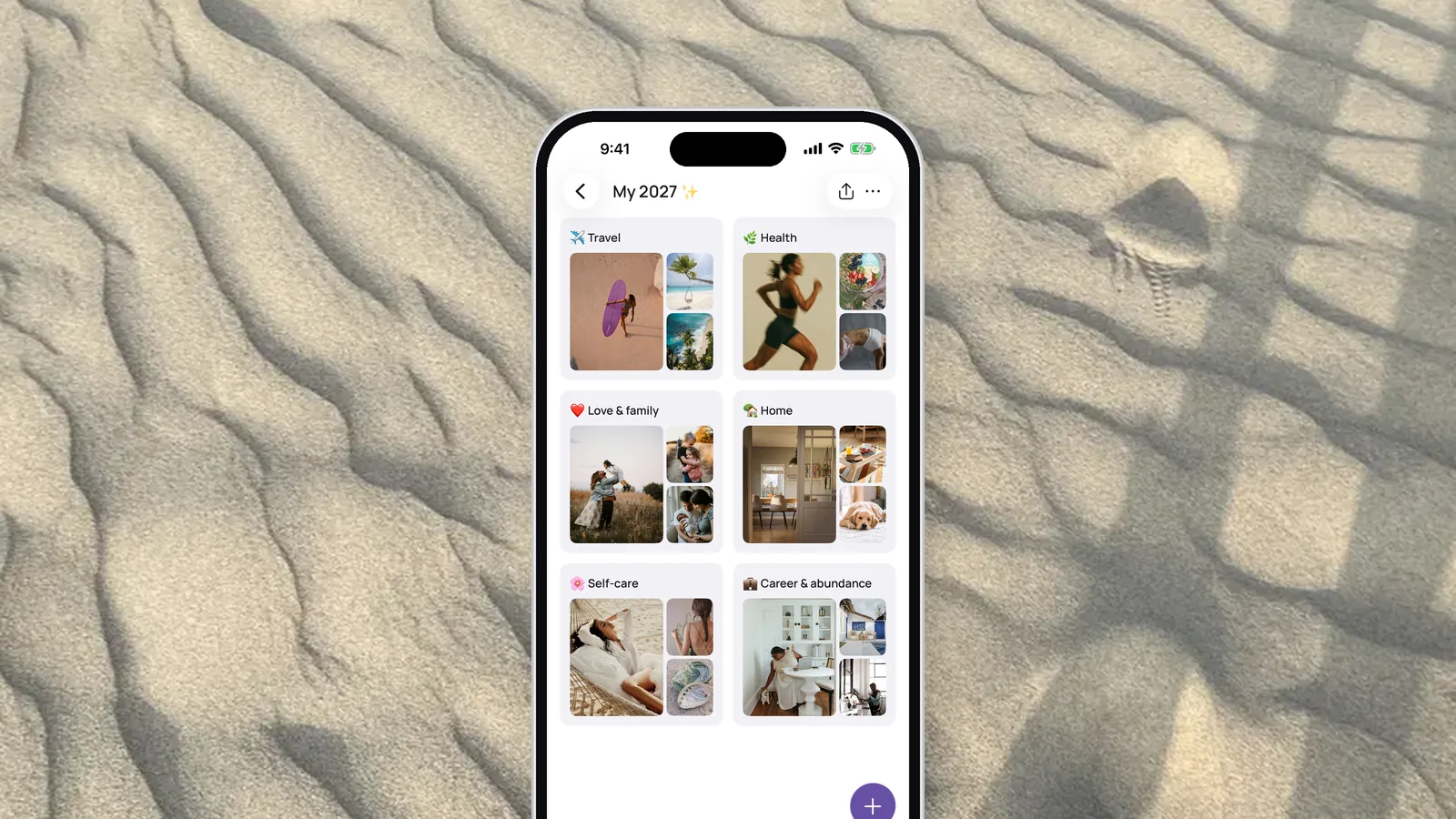
In VISIYA it takes five steps: say what you want to manifest, tap the pictures you like, create the board, add your own photos, and add an affirmation. Your first board is ready in about a minute.
1. Say what you want to manifest
Download VISIYA from the App Store and tap "Let's go." After your first name, the app asks, "What do you want to manifest?" Choose up to three areas, say Health and Love. The app uses them to suggest pictures and to write your board's description.

 Scan to download VISIYA on the App Store
2. Tap the pictures that feel right
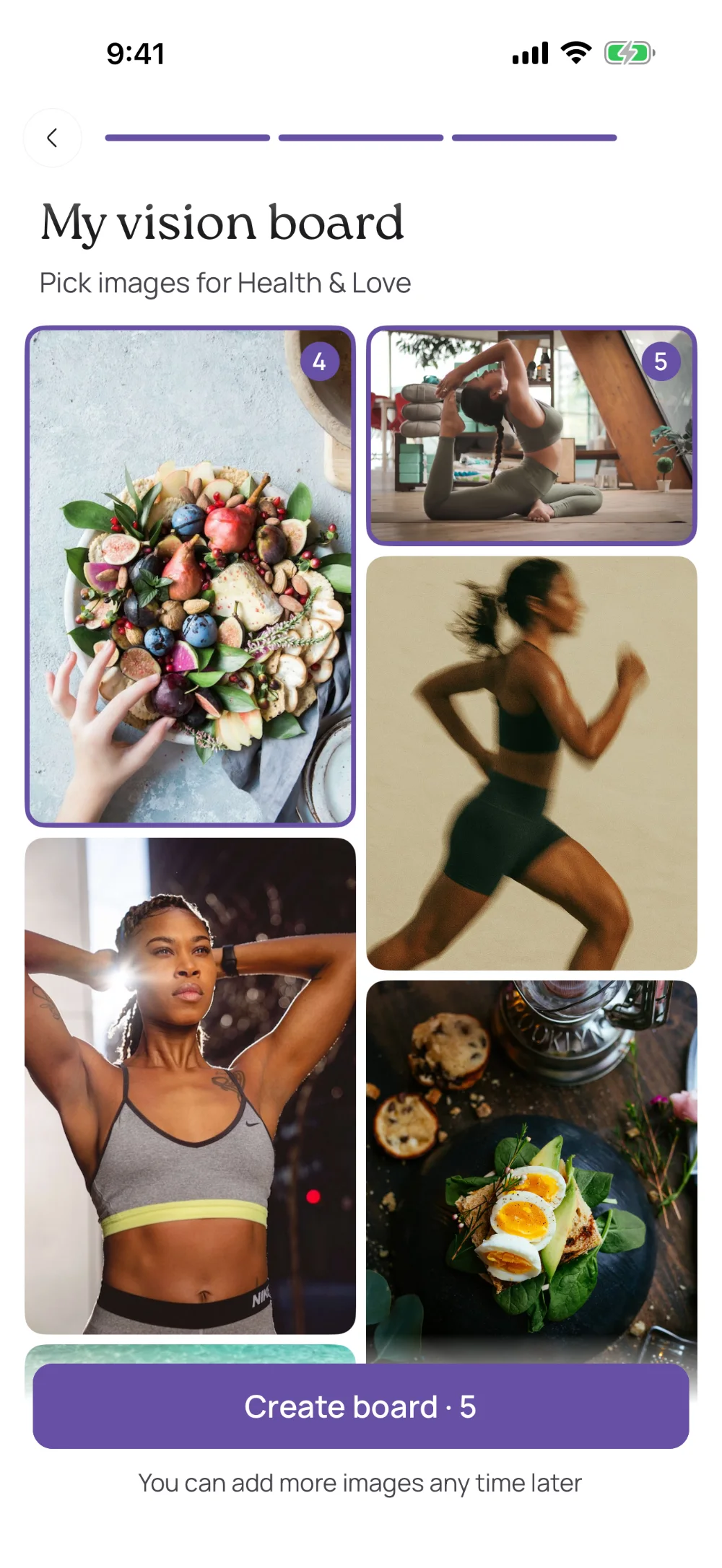
Next you'll see pictures for the areas you chose. Tap the ones you like, then tap "Create board" and sign in with Apple or Google so your board is saved. Don't overthink the pictures. You can add more any time.
3. Meet your board
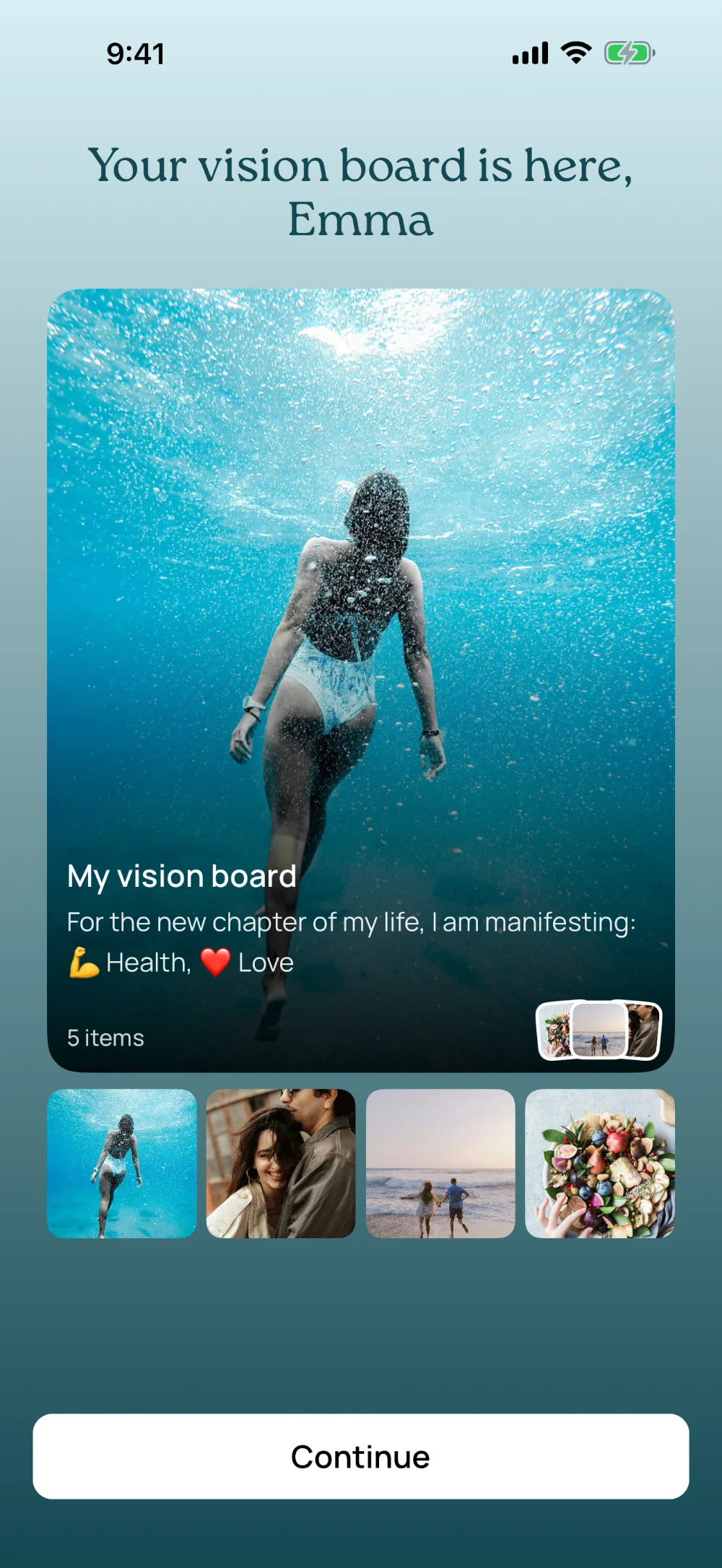
A few seconds later your first vision board is there, with the pictures you picked. It's one page, and everything you add later goes on it too.
4. Add your own photos, notes and links
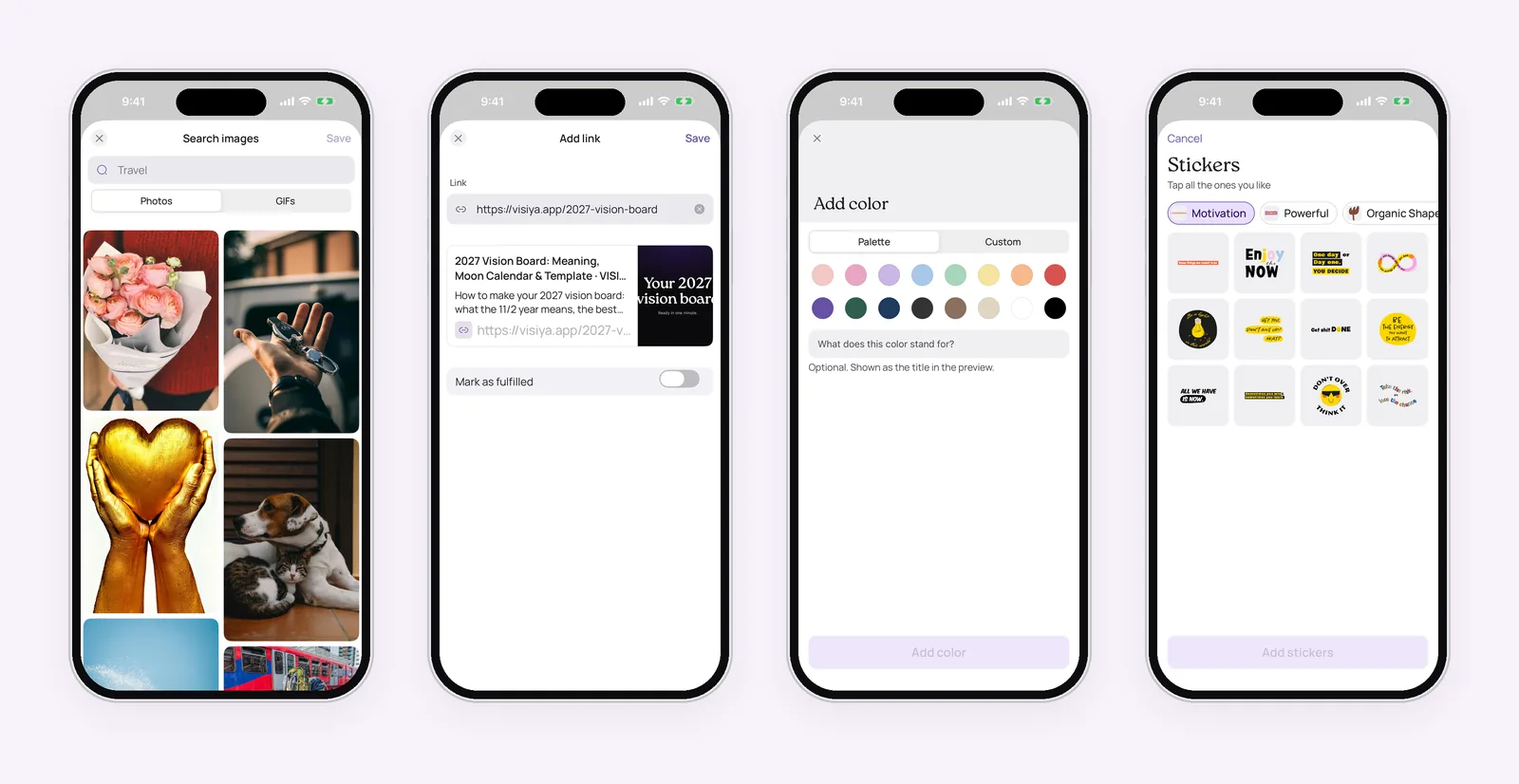
This is where your Photos album comes in. On your board, tap "+" to bring up the "Add" menu:
- Photos: pick up to 10 pictures at once from your photo library
- Camera: snap something right now, like a page from a magazine or a postcard on your fridge
- Search images: photos from Unsplash and GIFs from GIPHY
- Note: a line about how you want to feel, a date, a promise to yourself
- Link: an article, a product, a video
- Color: a tone for your board
There are stickers too. Some sticker packs are part of VISIYA Plus.
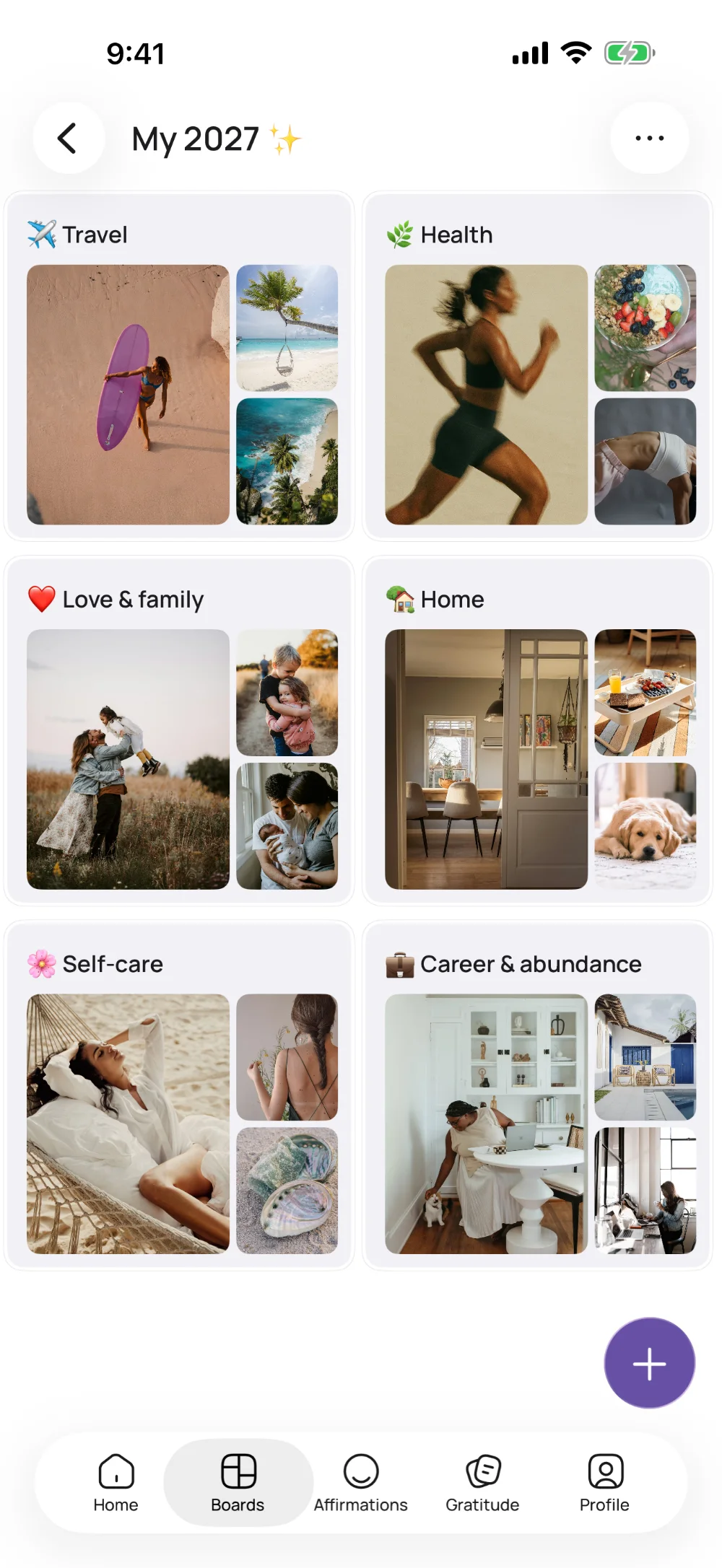
Would you like your board sorted into areas of life? Start from a template instead. Go to Boards, tap "Templates," pick one and tap "Use template." Its areas are already laid out, and you can rename any of them with "…" and then "Edit section." On the free plan, a template takes the place of your own board, so delete that one first.
5. Add an affirmation
A picture shows you where you're headed. A sentence next to it reminds you how you want to feel on the way there. Write your own as a note on your board, something like "I make time for myself without feeling guilty." Or find one you love in Affirmations: tap the heart, open Favorites, tap the affirmation and choose "Add to board." If you'd like to write your own but don't know where to start, here's how to create your own affirmations.
How do you add a vision board widget to your iPhone home screen?
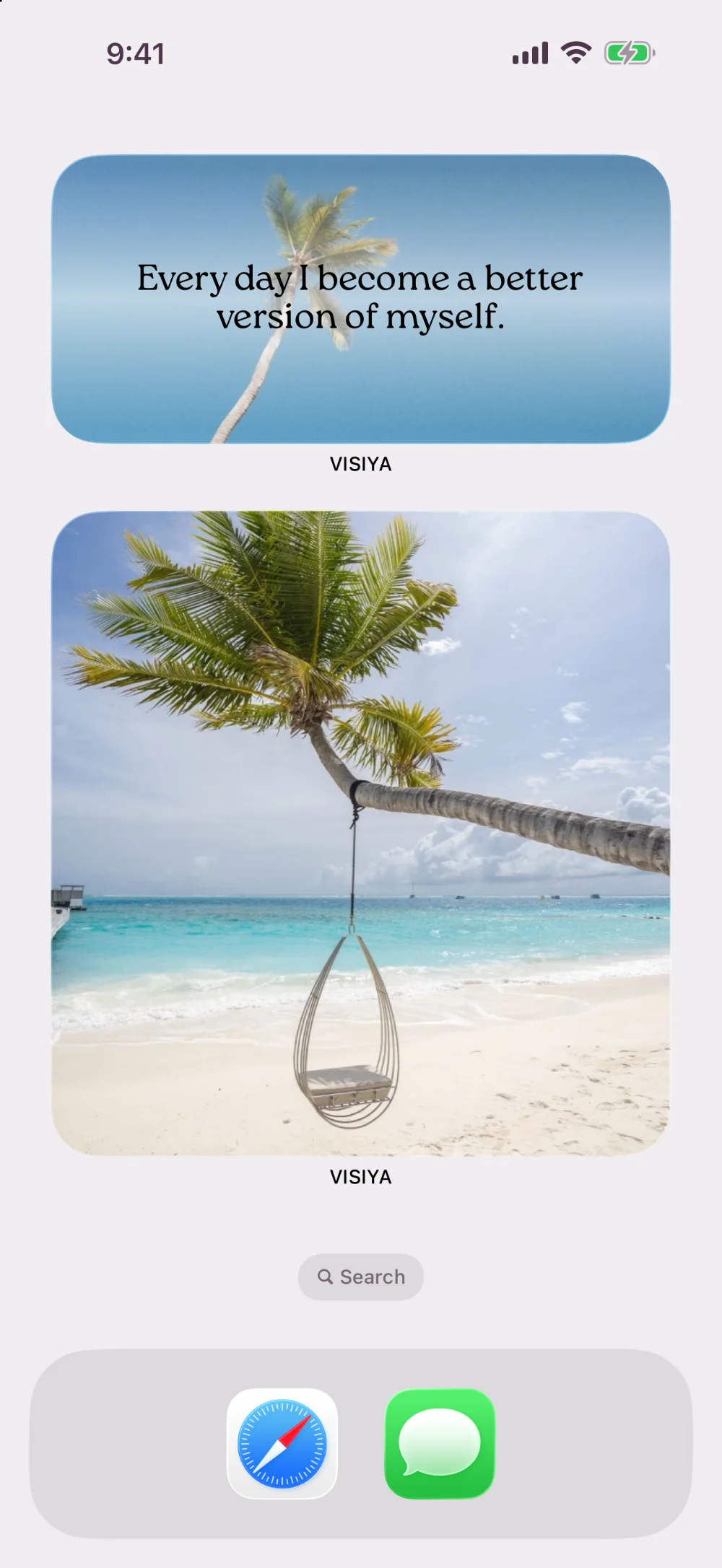
The same way you add any widget on iPhone. VISIYA has two: Affirmations and Vision Board. Here are the six steps:
- On your home screen, touch and hold an empty spot until the apps jiggle.
- Tap "Edit" at the top, then "Add Widget."
- Search for "VISIYA."
- Swipe through the sizes and tap "Add Widget."
- Drag the widget where you want it, then tap "Done."
- Touch and hold the Vision Board widget, tap "Edit Widget" and pick your board.
The widget is part of VISIYA Plus and cycles through all your pictures, so you see something different throughout the day. Without Plus, it shows just the first picture on your board. You'll find the same steps in the app under "Set up the widget."
How do you make your vision board your lock screen wallpaper?
VISIYA turns your board into a phone-sized collage, and then you set it as your wallpaper from the Photos app. You can try the preview for free. Saving the wallpaper is part of VISIYA Plus.
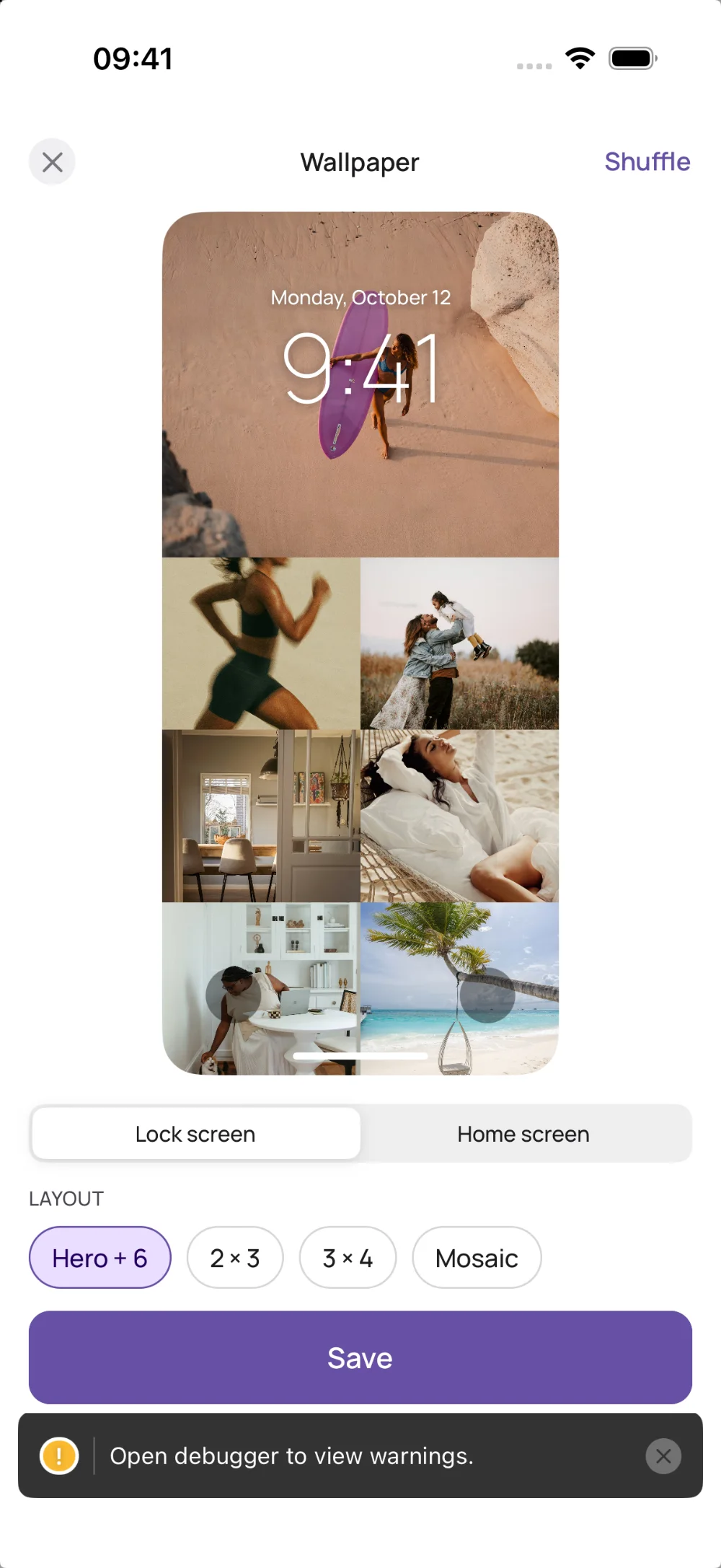
- Open your board, tap the three dots in the top right corner and choose "Create wallpaper."
- Switch between "Lock screen" and "Home screen" to see how it looks on each.
- Pick a layout: "Hero + 6," "2 × 3," "3 × 4" or "Mosaic." "Shuffle" mixes up the order, and you can tap a tile to swap in a different picture.
- Tap "Save," then "Save Image" in the share sheet. The collage lands in your Photos.
- Open Photos (it's the newest image in Recents), tap Share and choose "Use as Wallpaper."
- Tap "Add," then choose "Set as Wallpaper Pair" for both screens, or "Customize Home Screen" if you'd like something different behind your apps.
One thing to watch on the lock screen: the time and date sit on top of your picture, and lock screen widgets go right under them. In the "Hero + 6" layout, that's exactly where the big picture goes. Give that spot a picture whose important part isn't at the very top, like an ocean view or a wide landscape. Put a face up there and the clock will cut right through it.
Can you make a vision board in Canva or Freeform instead?
Yes. Both work if what you want is a single wallpaper image.
In Canva, start a design with a custom size that matches your phone's screen (a standard 1080 × 1920 template gets cropped on newer iPhones), drop in your pictures and download the result as an image. Freeform is a free Apple app: put your pictures on the board, arrange them and take a screenshot of the part you want. Either way, you then set the image as your wallpaper from Photos, just like above.
What you won't get that way is a board you keep adding to, a widget or a morning reminder. Here's how Canva compares with a vision board app for beginners. For a closer look at the options, see our guide to digital vision boards.
How often should you look at your vision board?
Every day, briefly and on purpose. A minute or two in the morning is plenty.
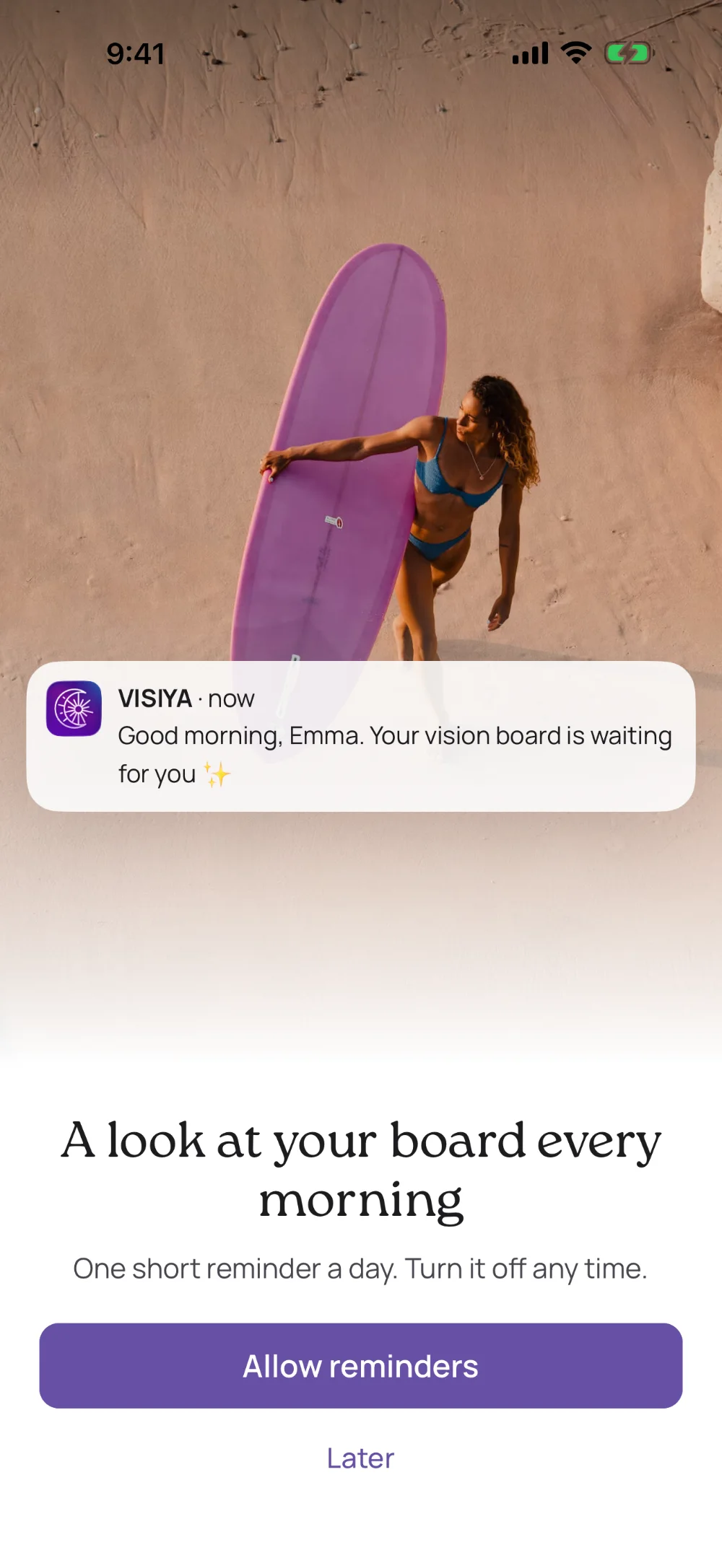
If you like, VISIYA sends you one short reminder a day, and you can turn it off any time.
Don't just look, though. Pick one picture and ask yourself what you could do today to move toward it, even if it's tiny. A lot of us redo our boards between Thanksgiving and New Year's. If you're planning your 2027, our 2027 vision board guide has ideas for every area of life. The ready-made 2027 Vision Board template is part of VISIYA Plus.
Can you make a vision board on your phone for free?
Yes. In VISIYA, one board is free for good: your own, filled with your photos, notes and links, or one of the six free templates with its areas already laid out. Image search comes with it. There are no ads and no trial that runs out.
VISIYA Plus (one-time purchase, no subscription) adds more boards, the ready-made Plus templates, saving the lock-screen wallpaper and a widget that cycles through all your pictures. Everything is laid out on our free vision board app page.
The easiest way to start is the way the app starts you: say what you want to manifest, tap a few pictures, and your first board is ready. You can fill in the rest whenever something catches your eye.
Would you rather start from a template? The Wheel of Balance Board is one of the free ones, built on the wheel of life, with areas like Health, Finances and Fun and recreation already laid out. In the app, it can be your one free board instead of your own. It's a quick way to see which part of your life could use some attention right now.
Frequently asked questions
Can I make a vision board on my phone for free?
Yes. In VISIYA, one board is free for good: your own, filled with your photos, notes and links, or one of the six free templates with its areas already laid out. Image search is free too. The widget is part of VISIYA Plus; without Plus it shows just your board's first picture. VISIYA Plus (one-time purchase, no subscription) adds more boards, the ready-made Plus templates, saving the lock-screen wallpaper and a widget that cycles through all your pictures.
What's the best app to make a vision board on iPhone?
It depends on what you want from it. If you only need one wallpaper image, Canva or Apple's free Freeform app will do. If you want a board you keep adding to, with a widget and a daily reminder, a vision board app like VISIYA is built for that. Your first board is ready in about a minute.
How do I make my vision board my lock screen?
In VISIYA, open your board, tap the three dots in the top right corner and choose Create wallpaper. Pick a layout, tap Save and choose Save Image (saving is part of VISIYA Plus). Then open the Photos app, tap Share on the new image and choose Use as Wallpaper.
Is there a vision board widget for iPhone?
Yes. VISIYA has two widgets, Affirmations and Vision Board. You add them like any other widget: touch and hold the home screen, tap Edit, then Add Widget, and search for VISIYA. The Vision Board widget is part of VISIYA Plus and cycles through all your pictures. Without Plus, it shows just the first one.
How many pictures should a vision board have?
There's no magic number. Three to five pictures per area of life is a good place to start. Each one still gets attention, and you can tell at a glance what that area is about.
Can I make a vision board on Pinterest or Canva?
Yes. Pinterest is great for collecting pictures, and Canva has phone wallpaper templates you can fill with your own images. Many people collect on Pinterest, save the best pictures to their phone and then build the board itself in an app.
Will my vision board move to a new iPhone or my iPad?
Yes, as long as you've created an account. Sign in with the same account on your new iPhone or on your iPad and your board is there. VISIYA is available for iPhone and iPad.