Vision Board
How to Create a Vision Board on Pinterest (and Keep It on Your iPhone)
Pinterest is where the ideas are. Here's how to set up a private vision board there, save the Pins you love to your iPhone's Photos, and turn them into a finished board you actually see every day.
On this page
- Why is Pinterest so good for vision board ideas?
- How do you set up a private vision board on Pinterest?
- How do you save Pins to your iPhone's Photos?
- What if "Download image" doesn't show up?
- Can you use a Pinterest board as your vision board?
- How do you turn your saved Pins into a vision board in VISIYA?
- How do you keep your board in front of you every day?
- Is it okay to use images from Pinterest on your vision board?
- Where should you start?
If you want to create a vision board on Pinterest, you're starting in the right place. Nowhere else can you type "cozy reading nook" or "Amalfi Coast in June" and get a hundred pictures of exactly the life you're picturing in a few seconds.
The tricky part comes later. Your board keeps growing, and one day you're scrolling past 300 beautiful Pins without a clear idea of which ones are actually your goals. Here's the setup I use: collect on Pinterest, save the keepers to Photos, then build the real board on my iPhone, where I see it every morning.
Why is Pinterest so good for vision board ideas?
Because it's the best visual search engine for "I want my life to look like this." It's free, it learns your taste the more you save, and it works the same on your phone and your laptop.
A few search tricks help when you're filling one life area at a time:
- Add "aesthetic" or "inspo" to a search, like "morning routine aesthetic" or "home office inspo". You'll get moodier, more cohesive pictures and fewer product shots.
- Search the feeling. "Slow Sunday morning" finds better pictures than "breakfast".
- Open the Pins you love and scroll down. The similar ideas underneath are often better than the first search.
We share board ideas on our own Pinterest profile too, if you want a starting point.
How do you set up a private vision board on Pinterest?
Create a new board and turn on "Keep this board private" while you name it. Now only you and the people you invite can see it.
Pinterest used to call these "secret" boards, so older guides still use that word. Already have a public board? Tap the board's "…" menu, then Edit, and switch on "Make this board private".
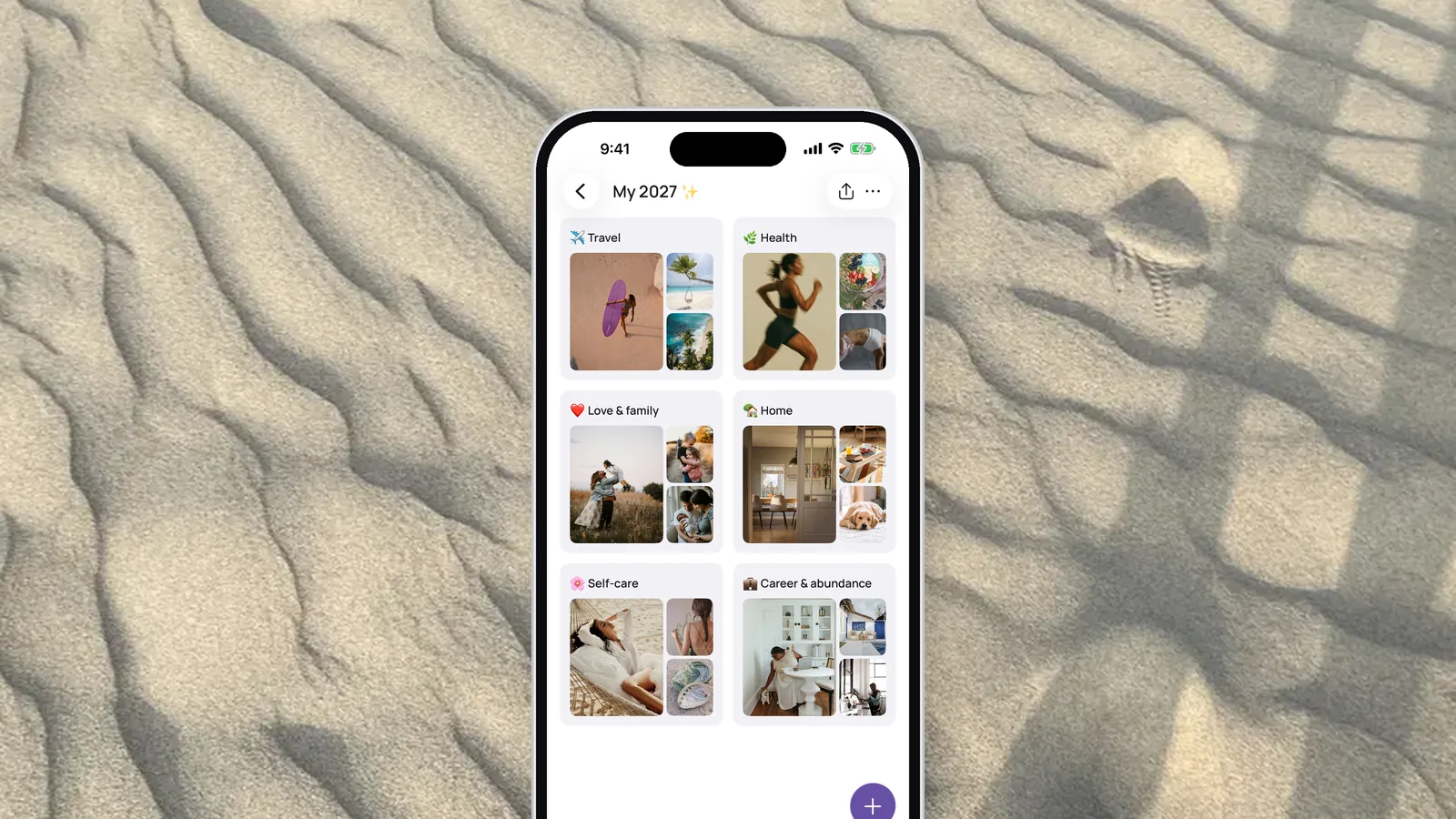
Next, give the board some structure so it doesn't turn into a junk drawer. On the board, tap + and then Section, and make one section per life area: health, home, love, career, travel, money. If you're not sure which areas fit you, our post on vision board areas walks through the common ones. When you save a Pin, pick its section, and later you can build your board one area at a time.
How do you save Pins to your iPhone's Photos?
In the Pinterest app it takes three taps, and the picture lands in your Photos app:
- Tap the Pin.
- Tap the "…" icon below the Pin.
- Tap Download image.
You can also skip a step: the "…" menu on a Pin in your home feed has "Download image" too.
One habit that saves a lot of hunting later: make an album in Photos called "Vision board" and move each picture into it right away. Otherwise your dream kitchen ends up buried between grocery-list screenshots and 40 photos of your dog.
What if "Download image" doesn't show up?
Then that Pin can't be downloaded. Pinterest says plainly that not every Pin allows it, and video Pins don't have a download option at all.
Here's what to try:
- Another route. Open the Pin from your home feed, or log in to Pinterest in Safari and try there.
- The usual fixes. Restart the app, check that your iPhone has free storage, make sure Pinterest is allowed to add to Photos in your iPhone settings, and update the app.
- A screenshot. Take one and crop it in Photos. For a private board that only you see, that's fine.
- Keep the link. Copy the Pin's link and add it to your board later as a link. That works well for a recipe, an article or a video you want to come back to.
Can you use a Pinterest board as your vision board?
You can, and plenty of people do. Pinterest even has an iPhone widget that shows Pins from a board you choose, and on many devices a Collage tool for arranging cutouts into one image you can save.
The catch is what a Pinterest board is made for: collecting. It's never finished, because Pinterest keeps suggesting more ideas and the board keeps getting longer. The widget picks the Pins for you, so you don't decide which picture greets you in the morning. There's also no spot for an affirmation next to each goal, and no single screen that shows every area of your life at once.
So I split the job. Pinterest is where I save anything that catches my eye. The vision board only gets the pictures I'm sure about.
How do you turn your saved Pins into a vision board in VISIYA?
Start from a template, which comes with its areas already laid out, and fill it straight from your "Vision board" album in Photos, one area at a time.
- Pick a template. Open VISIYA, go to Boards, tap Templates, choose one and tap Use template. On the free plan, delete the board you made yourself first, since the template takes its place as your one board.
- Match your Pinterest sections. To rename an area, tap its "…" and then Edit section.
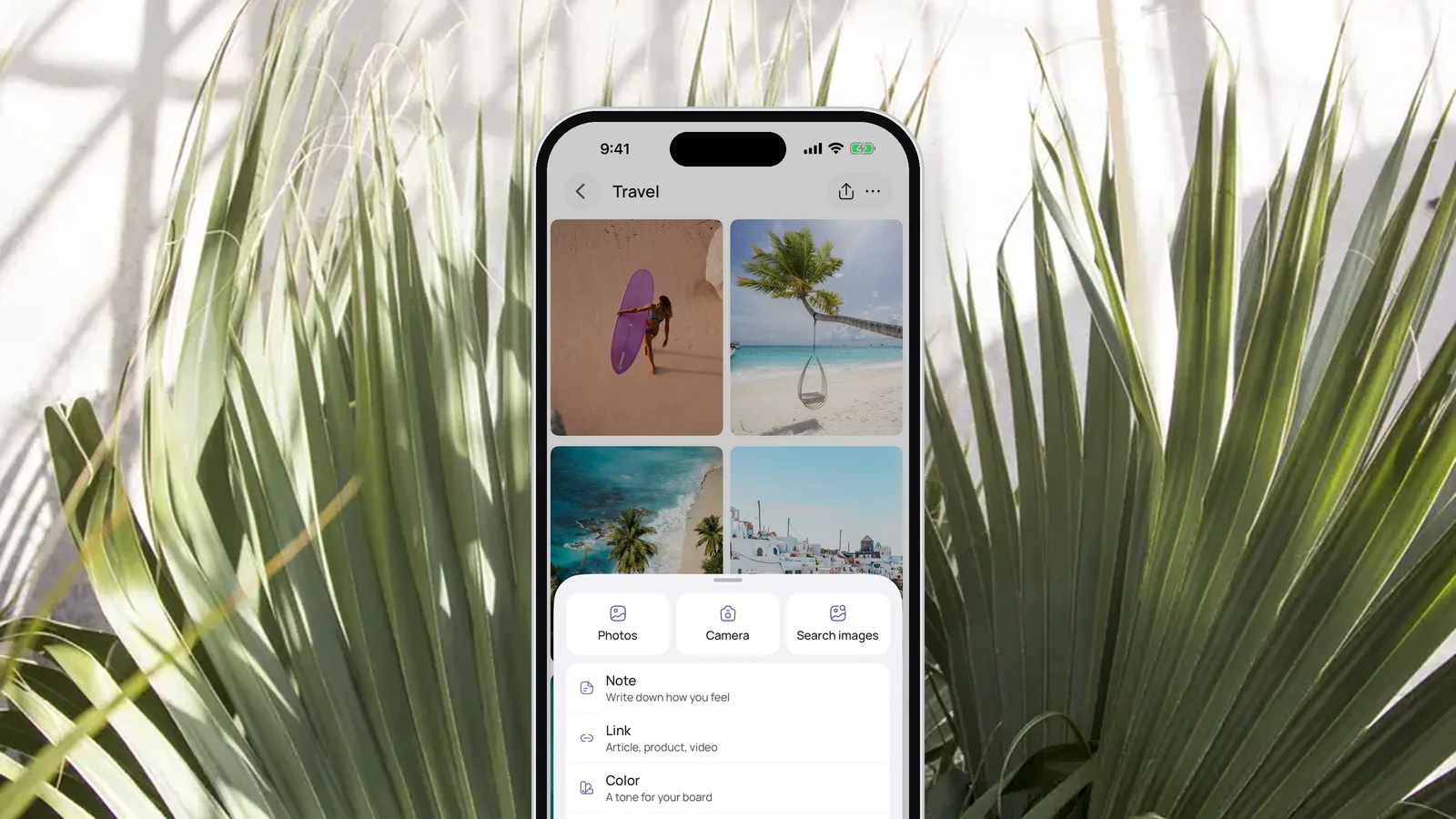
- Bring in your pictures. Open a section, tap + and then Photos. You can pick up to 10 pictures at once from your album.
- Add the words. Tap Note and write an affirmation for that area, like "I feel strong and rested in my body."
Would you rather start from scratch? Tap + on the Boards screen, name your board and tap Create. A blank board has no sections, so all your pictures go on one page.
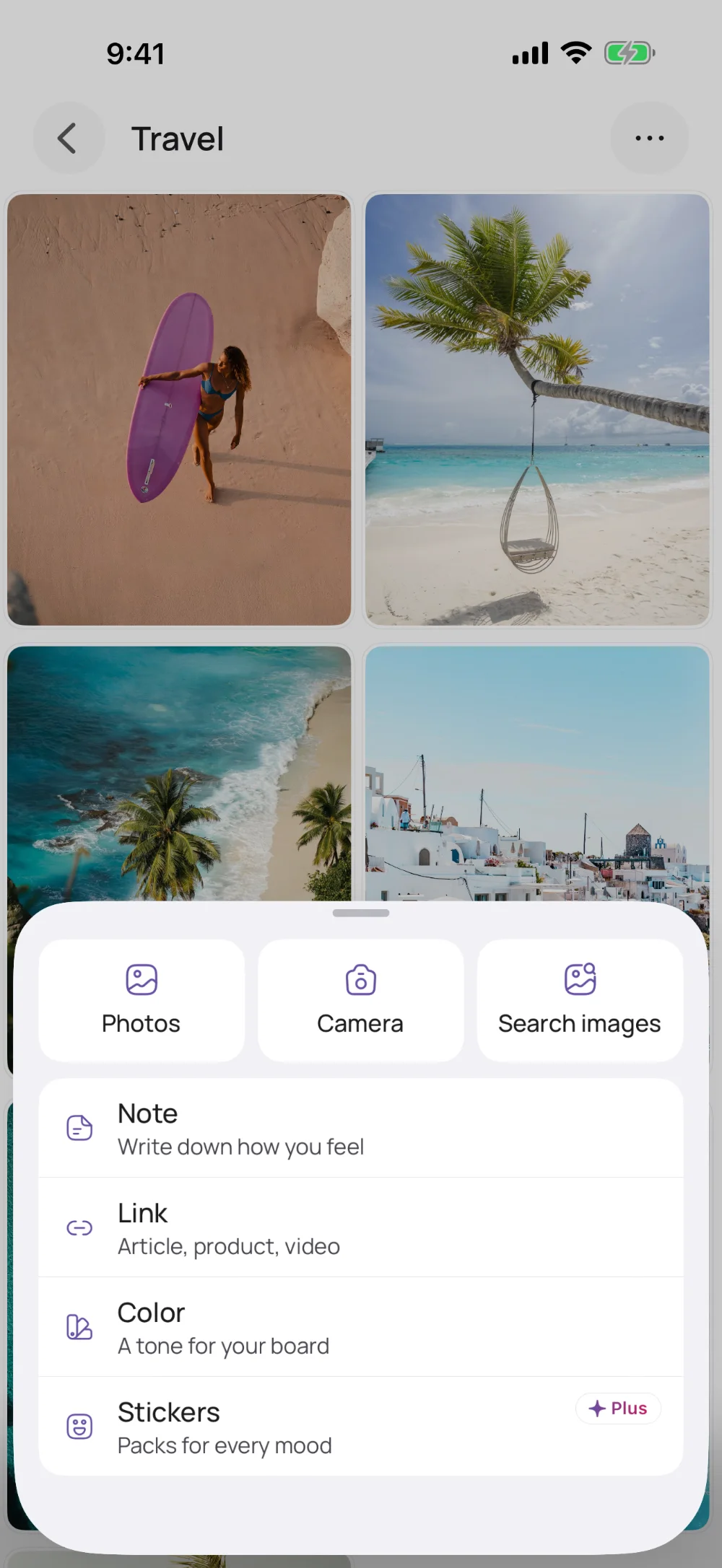
The same menu has Link for the Pins you couldn't download, Camera for a photo you take yourself, and Search images if one area still looks thin. If VISIYA shows "Not all photos are visible", you've given it access to selected photos only; switch it to "All Photos" in your iPhone settings so your album shows up.
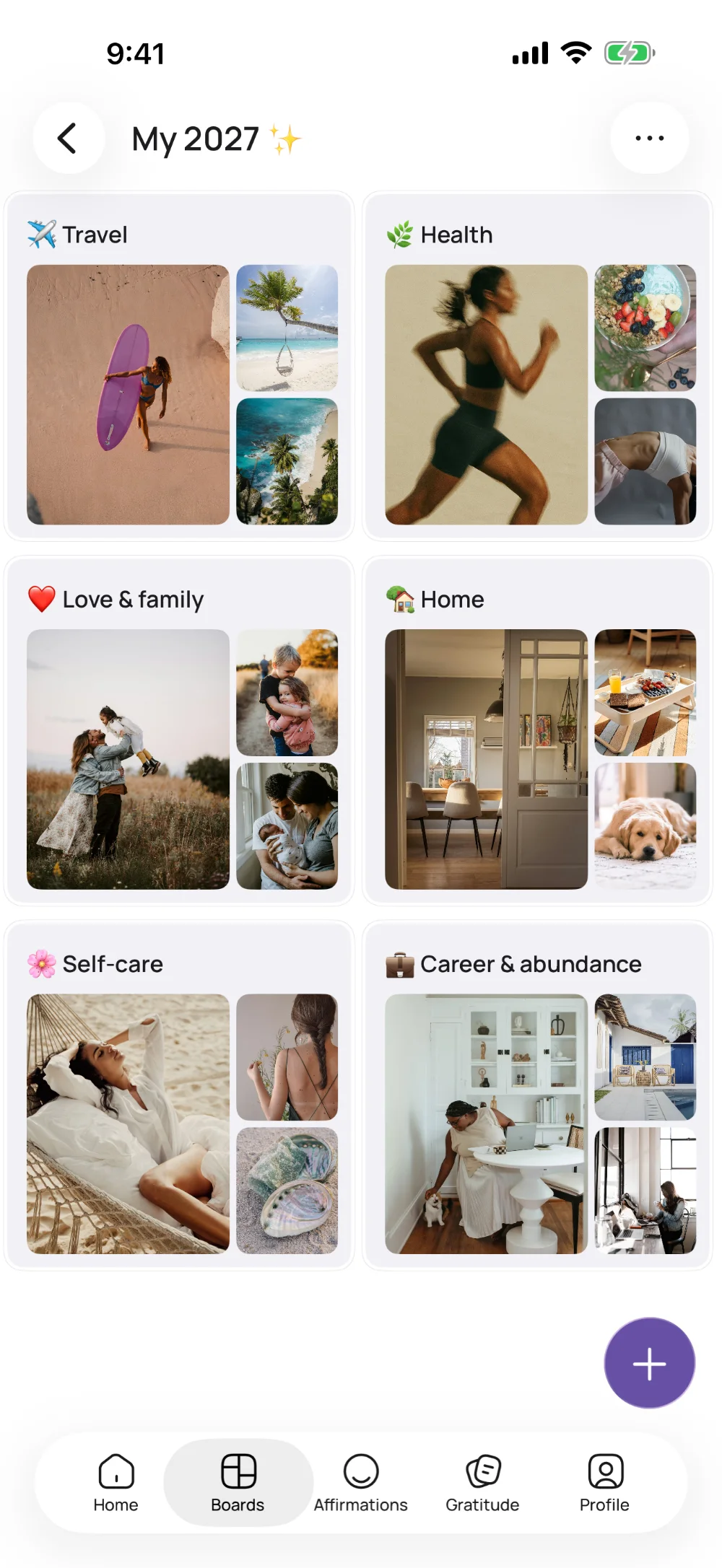
For every step in detail, see our guide on how to make a vision board on your phone. Want to see what finished boards look like first? Browse our vision board examples.
How do you keep your board in front of you every day?
Put it on your Home Screen with the widget. Touch and hold an empty spot until the apps jiggle, tap Edit and then Add Widget, search for "VISIYA" and choose the Vision Board widget.
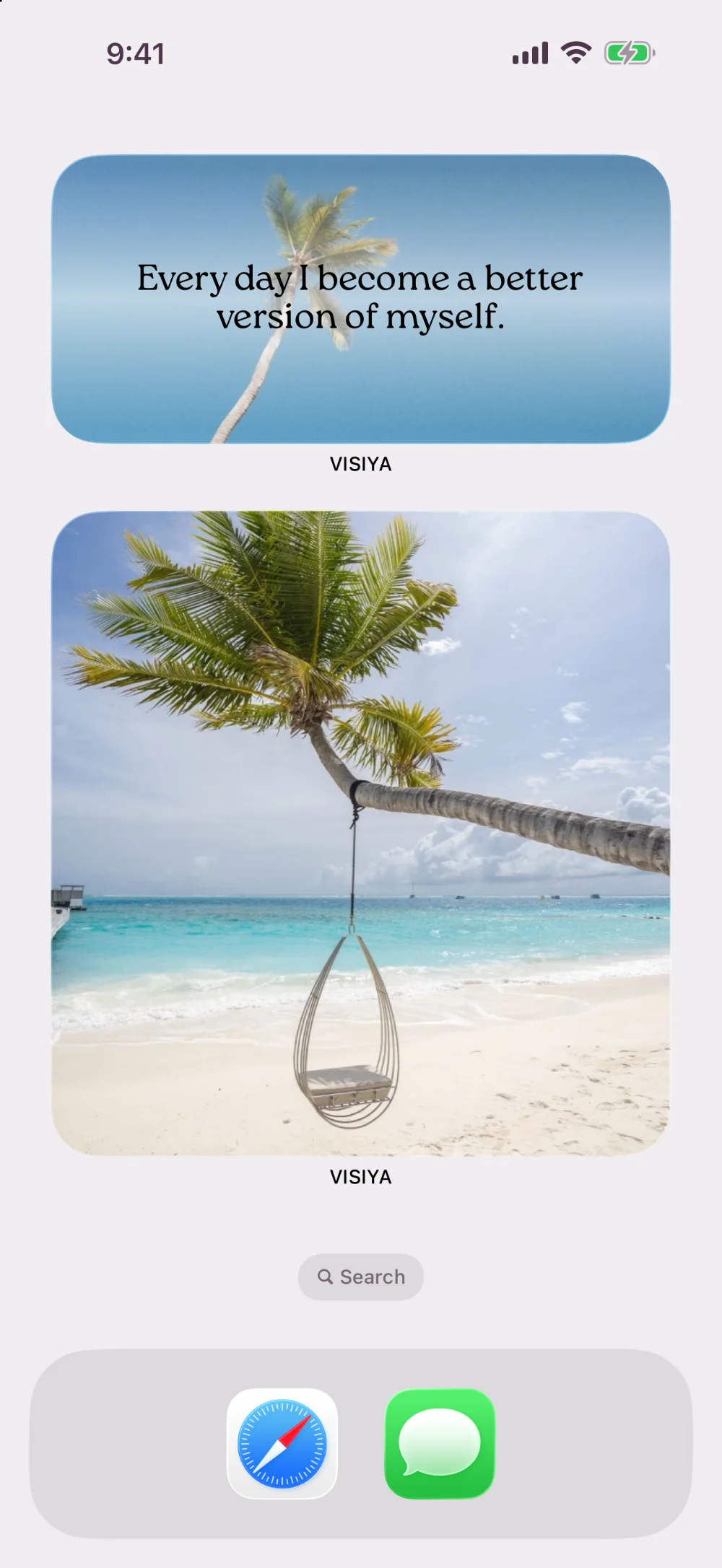
The widget is part of VISIYA Plus and cycles through all your pictures. Without Plus, it shows just the first picture on your board.
For your lock screen, open your board, tap "…" and then "Create wallpaper". Pick a layout, tap Shuffle until you like the mix, then tap Save and choose "Save Image" in the share sheet. Then open Photos, tap Share and choose "Use as Wallpaper".
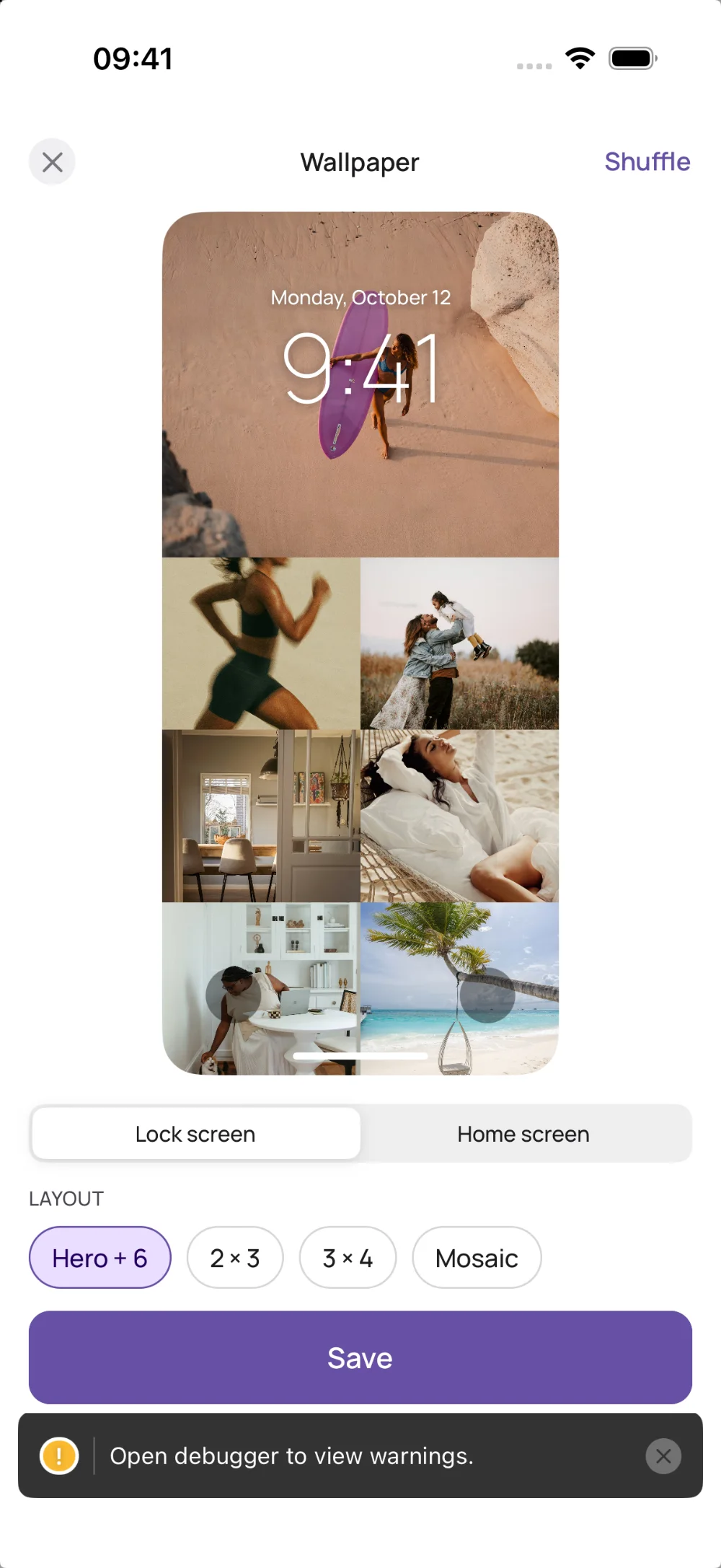
Saving the wallpaper is part of VISIYA Plus.
In VISIYA, one board is free for good: your own, filled with your photos, notes and links, or one of the six free templates with its areas already laid out. VISIYA Plus (one-time purchase, no subscription) adds more boards, the ready-made Plus templates, saving the lock-screen wallpaper and a widget that cycles through all your pictures. The full breakdown is on our free vision board app page.
Is it okay to use images from Pinterest on your vision board?
For a board only you see, yes, that's how most people use it. Saving pictures for your own personal use is normal; posting them is where it gets murky.
So keep your Pinterest-built board for yourself. Don't post it on Instagram, print it to sell, or pass it around as a template. VISIYA lets you invite people to a board and share it, so if you want to do that, fill it with your own photos or with Search images, which finds photos on Unsplash and GIFs on GIPHY. This is general information, not legal advice.
Where should you start?
With a template that already has the areas laid out. Our free This Year I Will template even has a section made for your Pinterest finds, "Get inspired by", plus "Spend more time with these people", "Build these good habits", "Learn more about" and "Make these dreams happen". It works for any fresh start: January 1, your birthday or just a Monday that feels like one.
Download the free PDF to print, or make it your one free board in the app: get VISIYA free on your iPhone or iPad, choose This Year I Will under Templates in place of your own board, and fill each section from your "Vision board" album. Planning your 2027? Our 2027 vision board guide has more ideas for the year.

 Scan to download VISIYA on the App Store
Pinterest is a trademark of Pinterest, Inc. VISIYA is not affiliated with Pinterest.
Frequently asked questions
Should my Pinterest vision board be public or private?
Private, for most people. Turn on "Keep this board private" when you name the board, and only you and anyone you invite can see it. Your goals stay yours, and it's also the safer choice when the board is full of other people's photos.
Why can't I download some Pins?
Pinterest says not every Pin can be downloaded, and video Pins have no download option. If "Download image" is missing, try the Pin from your home feed or open Pinterest in a browser. If nothing saves at all, restart the app, check your storage, make sure Pinterest is allowed to add to Photos in your iPhone settings, and update the app. As a last resort, take a screenshot for your own use or keep the Pin's link.
How do I make my Pinterest vision board my iPhone wallpaper?
Pinterest doesn't export a board as a wallpaper, but you can make one. In VISIYA, open your board, tap "…" and then "Create wallpaper", pick a layout, tap Save and choose "Save Image" (saving the wallpaper is part of VISIYA Plus). Then open Photos, tap Share and choose "Use as Wallpaper". A collage you made with Pinterest's Collage tool and saved to your phone can be set as wallpaper the same way.
How many images should a vision board have?
There's no magic number. Three to five pictures per life area is plenty for most people: enough to see what you want at a glance, few enough that every picture still means something.
Can I use Pinterest images on my vision board?
For a board that's just for you, saving images for personal use is what most people do. Don't post, print to sell or share a board made of other people's photos. If you want to share your board, use your own photos or licensed stock images instead. This is general information, not legal advice.
Is VISIYA free?
One board is free for good: your own, filled with your photos, notes and links, or one of the six free templates with its areas already laid out. There are no ads. VISIYA Plus (one-time purchase, no subscription) adds more boards, the ready-made Plus templates, saving the lock-screen wallpaper and a widget that cycles through all your pictures. VISIYA is available for iPhone and iPad.